Get Started with Python
There are 3 parts:
A software “understands” Python lanugage and commands your computer accordingly. This software is also called “Python”, yes, the same as the language name.
Another software helps us to manage different yet powerful “plug-ins” to our vanilla Python environment. Something called “Conda” comes in here. (Yes, unfortunately given Python, we will be dealing with a lot of “snakes” 🐍. Please don’t worry, the snakes here are quite nice and none of them bite. That’s a promise… 😎).
A fancy text editor helps with writing and evaluating Python syntax. Considering we will type many characters, words etc., having a helper boosts productivity makes a day-and-night difference. We will go with the favorite among the cool kids in the analytics community, called “Visual Studio Code” (“VS Code”). (No, this one doesn’t involve any snakes.)
The good news is, there is a software called “MiniForge” (Surprisingly, no snakes …) that can take care of Python and Conda altogether. Please see below Install MiniForge. 👇🏻👇🏻
Install MiniForge
⚠️ Please note:
- A detailed walkthrough for Windows OS user is introduced here and a reference video for macOS users is provided here.
- The Anaconda or Python version below or in the referenced macOS videoes might not be as recent as you will see, but the installation process will be the same.
For Windows OS users:
Head to MiniForge download website, https://conda-forge.org/download/. (yes, even the website is called “conda-forge”, we are downloading “MiniForge” still. 😇) and download installer file for Windows OS.
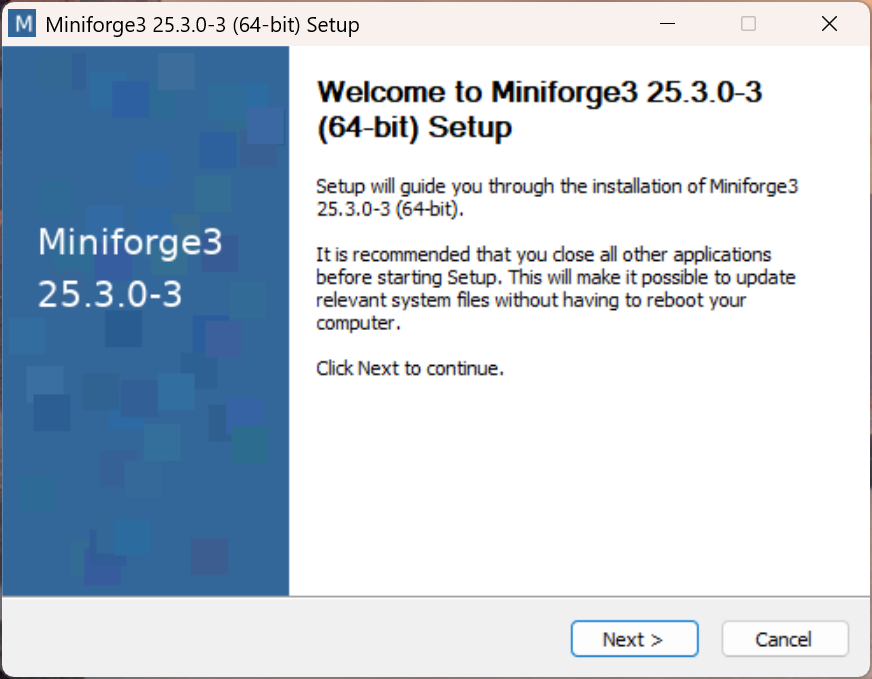
Open the downloaded installer and it will greet you like the following:
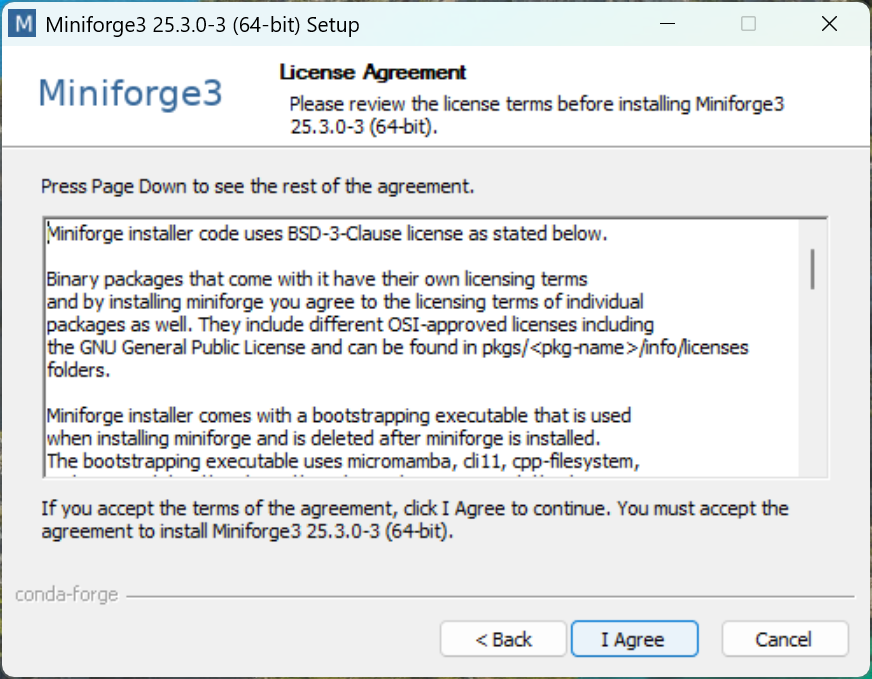
- Agree to user agreement.
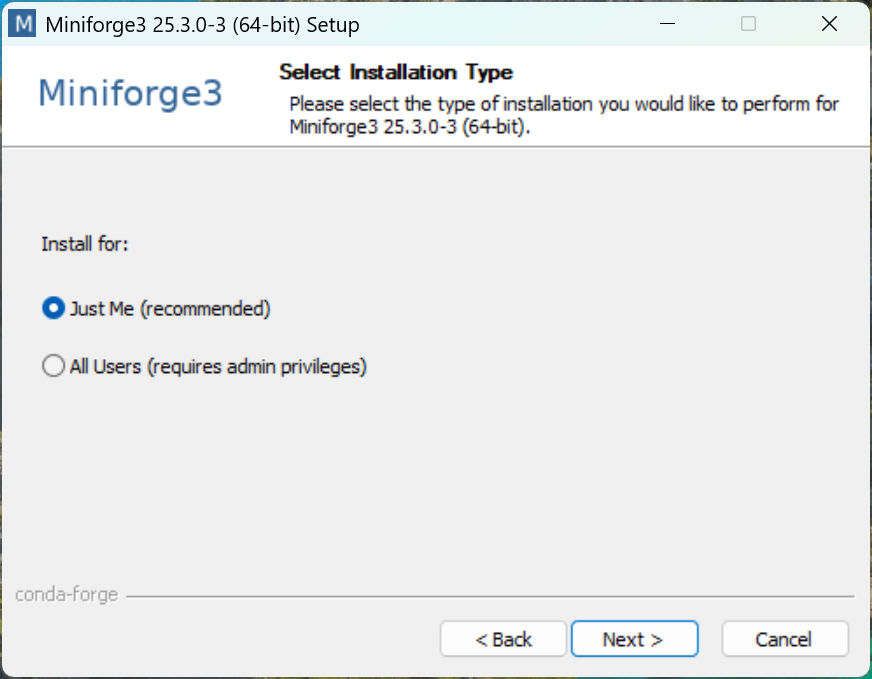
- Go with just install for the current user (“Just Me”)
- Go with the default file path
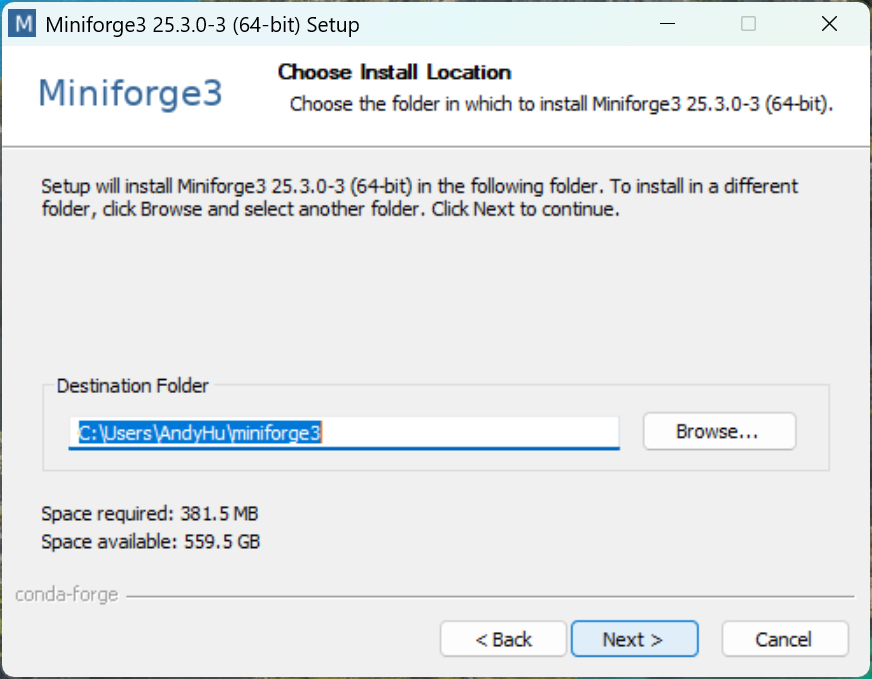
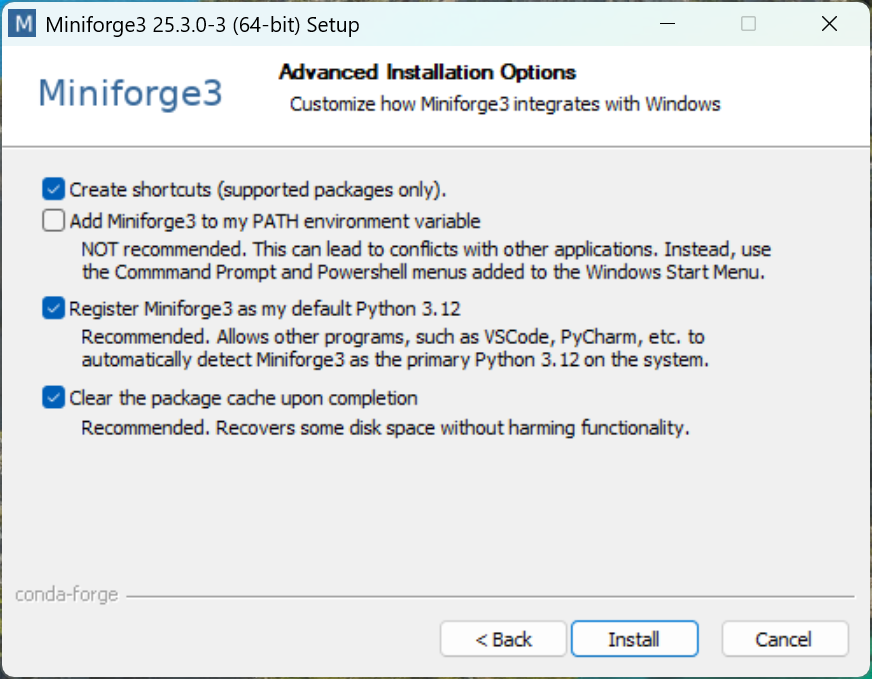
- Make sure the following options are selected.
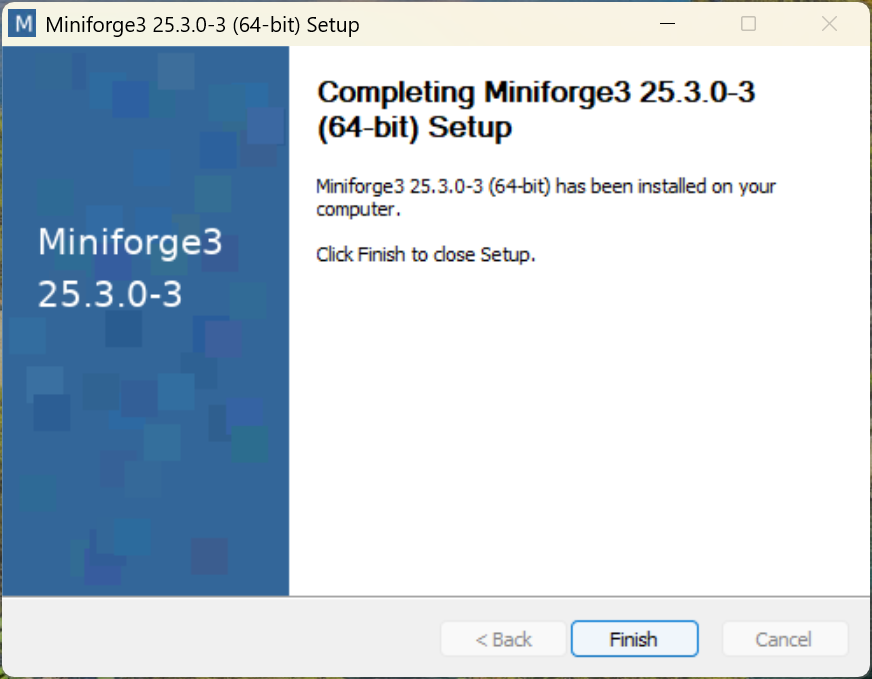
- Proceed to finish installation
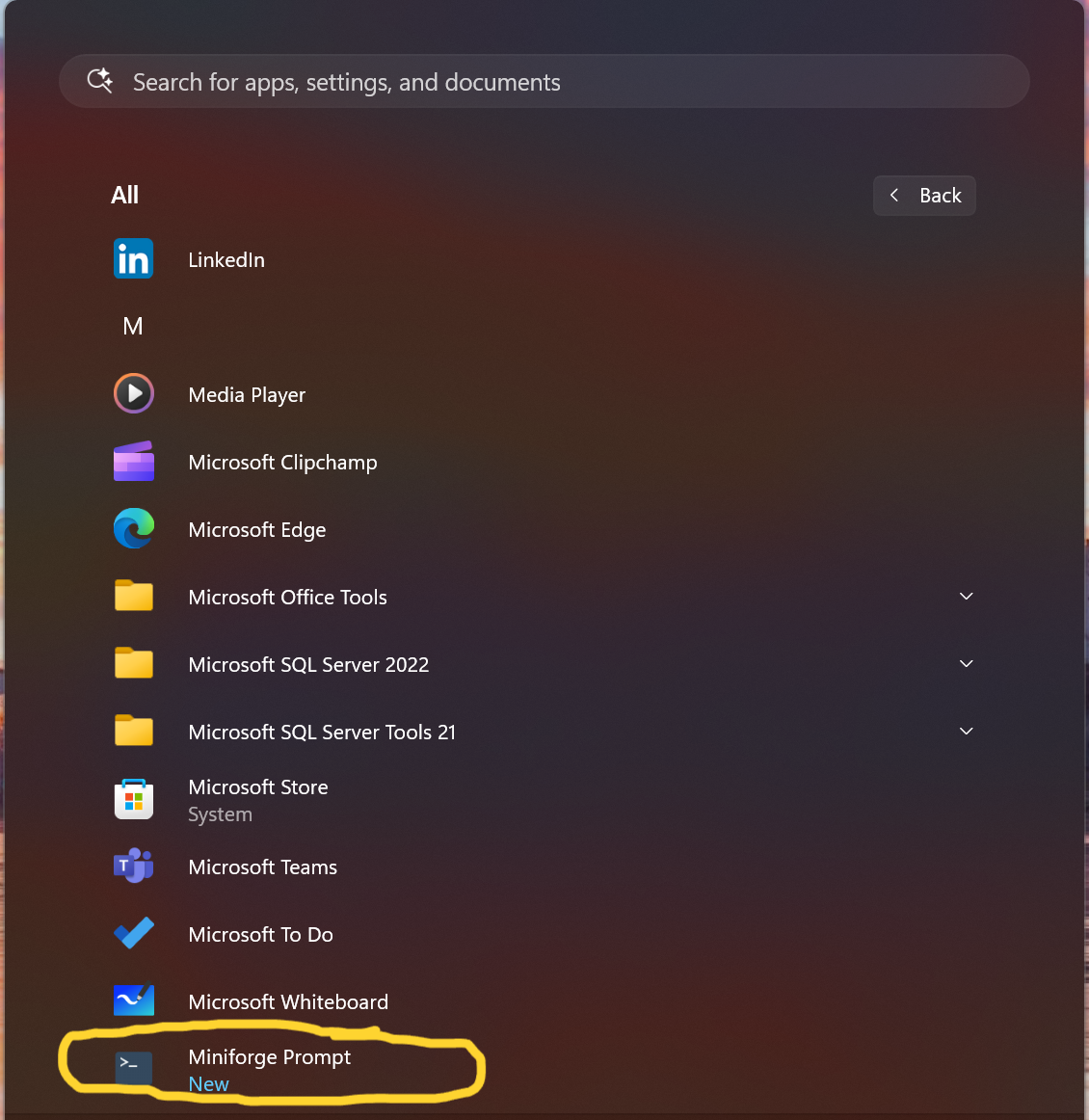
- In Start Menu, notice that there is something new called “MiniForge Prompt” and click to open it.
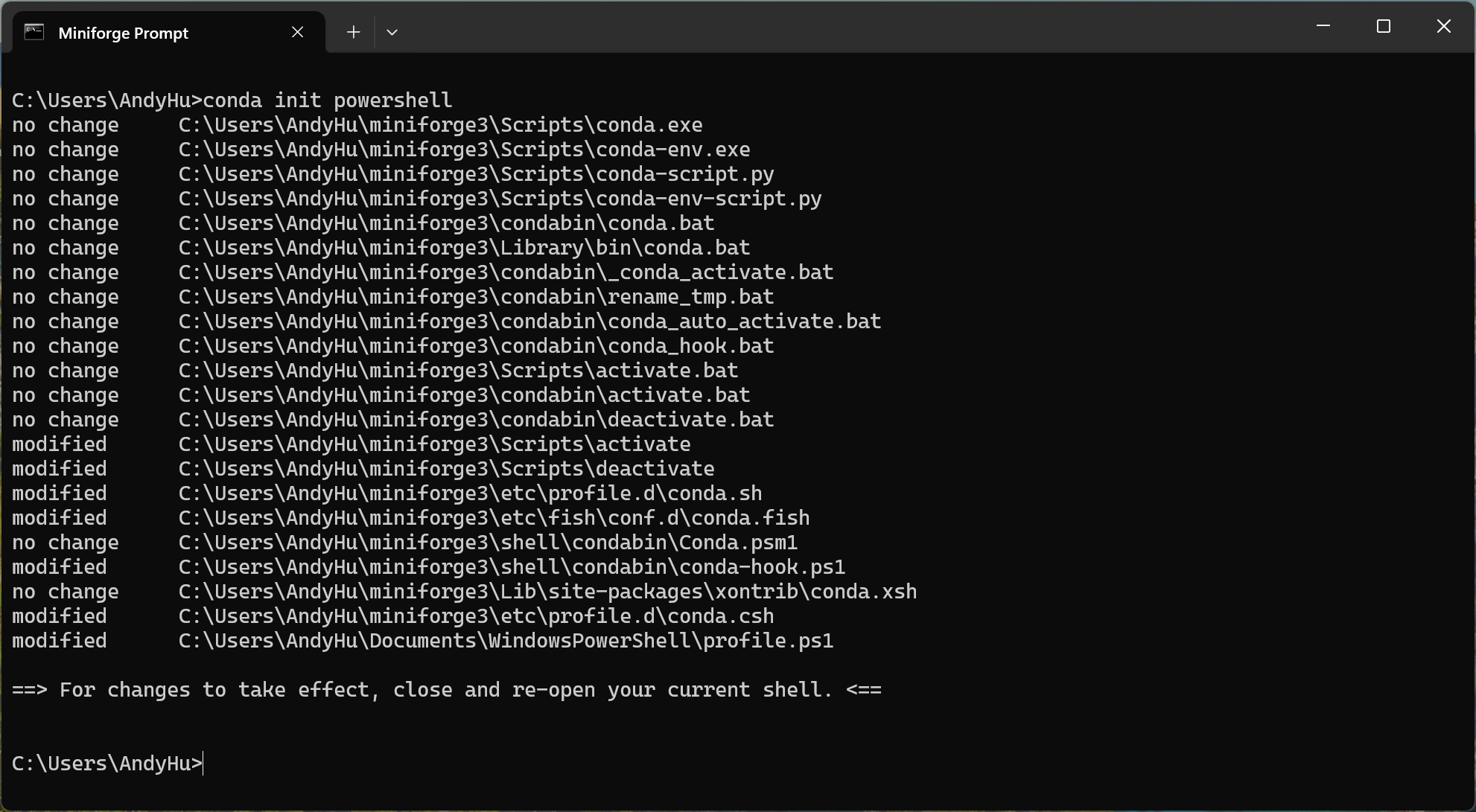
- In the open MiniForge Prompt, type the following and then press Enter key.
conda init powershell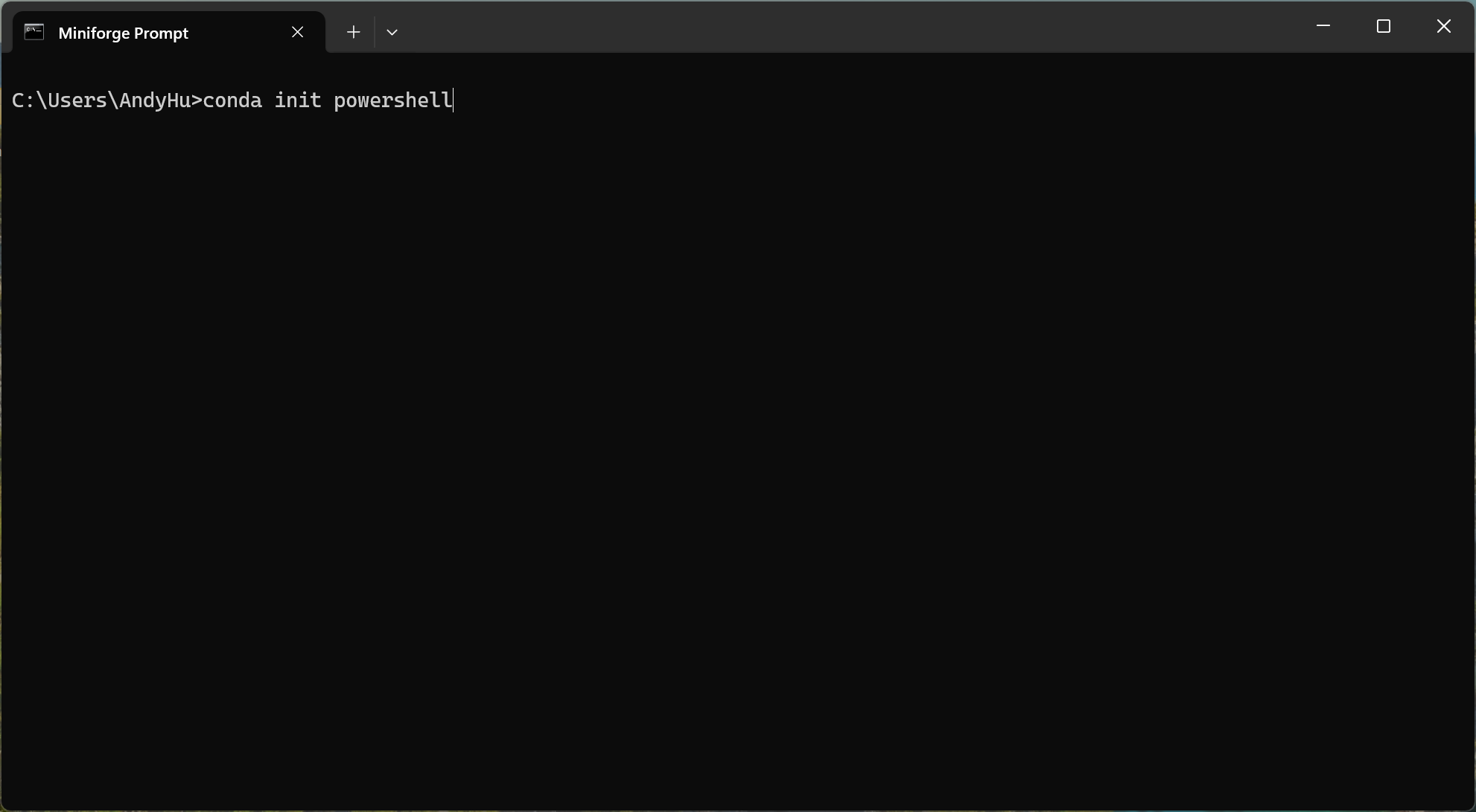
- You should be able to see the following:
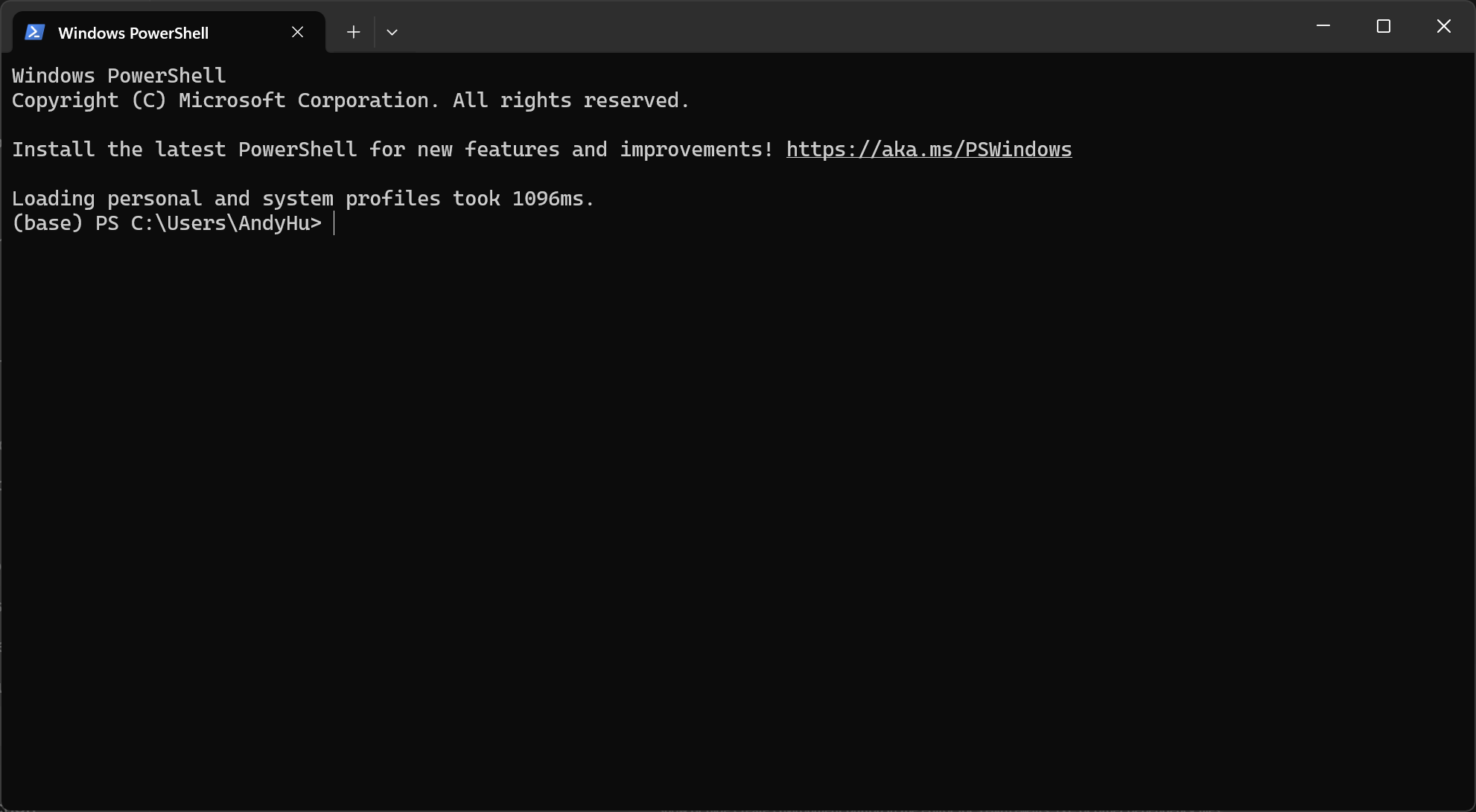
- Close the MiniForge Prompt window and open Windows PowerShell, you should be able to see the following.
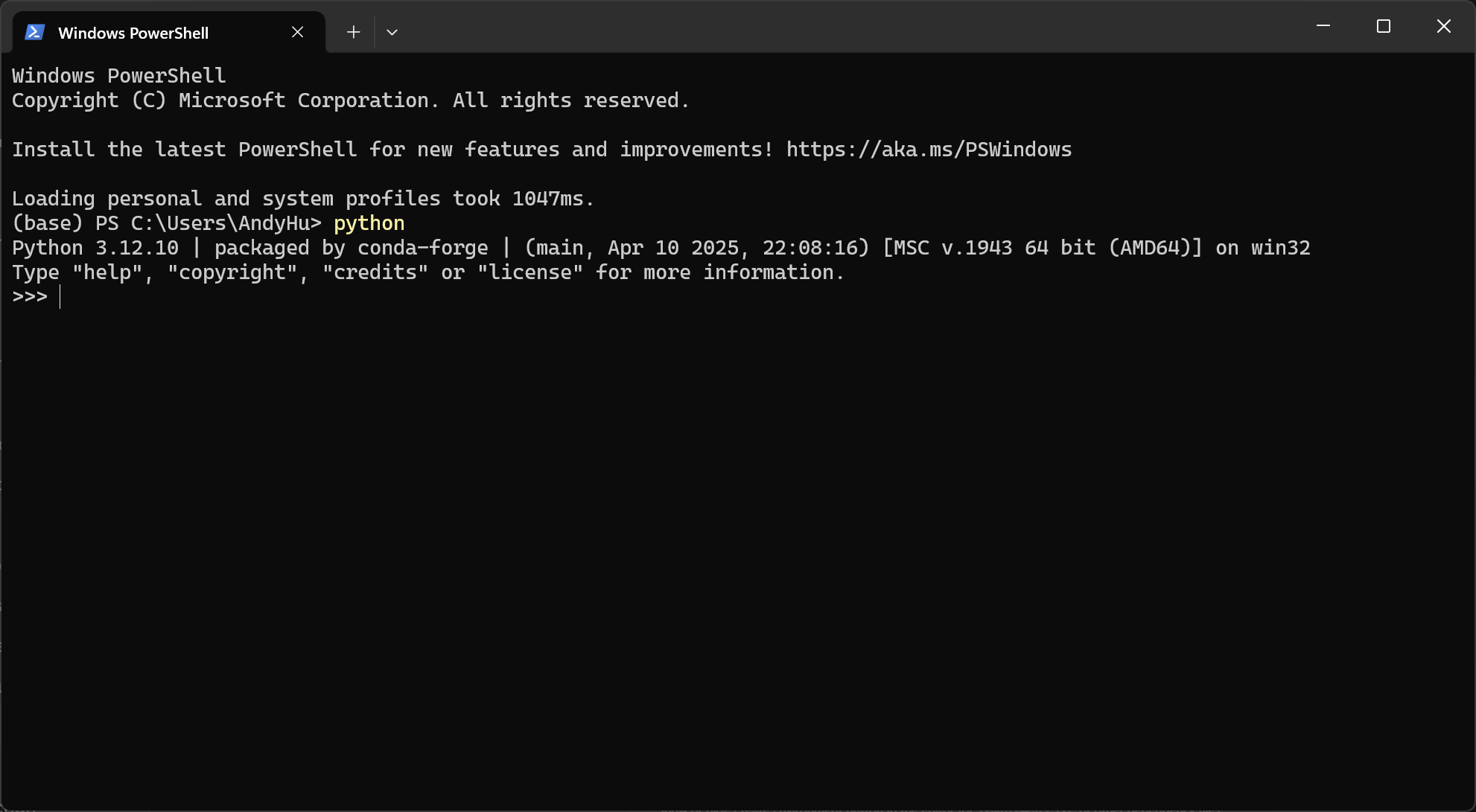
- Type the word Python in the command line, you should see the confirmation of a Python found!
🎉🎉 That’s it! You have reached to the finishing line of installing MiniForge and Python!!