Get Started with Anaconda Code
Since Anaconda Toolbox and Anaconda Code are bundled to work within Microsoft Excel, there are 4 parts to this process:
- (If you don’t have one) Register a Microsoft Account
- Sign into Excel with a Microsoft Account
- Install Anaconda Toolbox
- Register and sign into Anaconda Account
How to get Microsoft Account
⚠️If you already use or have a hotmail or outlook.com account, then you already have a Microsoft 365 Account. Please skip this part.
⚠️A free Microsoft Account will suffice. We don’t need to pay for anything extra for this session.
- Go to the Microsoft Account Sign Up Page.
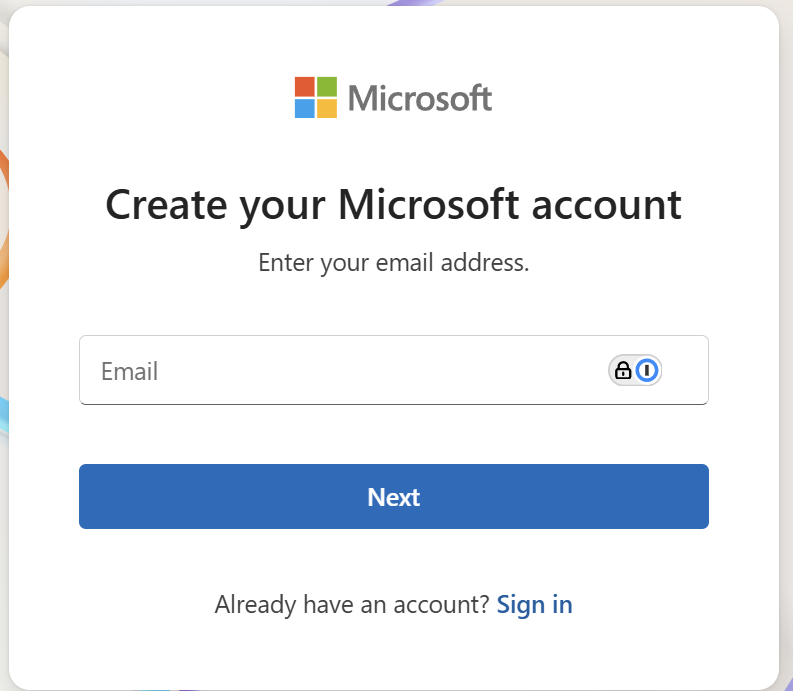
Entre a desirable email address that ends with “\@outlook.com” (e.g. super_andy_hu\@outlook.com)
Follow the steps to complete creating the Microsoft Account.
That’s it! You now have a Microsoft account.
How to Sign In to Excel with Your Microsoft Account
You can use your free Microsoft account to access Excel on the web or sign in to the desktop version if you have it installed.
Option 1: Use Excel Online (No Excel Desktop Installation Needed)
Go to office.com.
Click Sign in (top right) and enter your Microsoft account credentials.
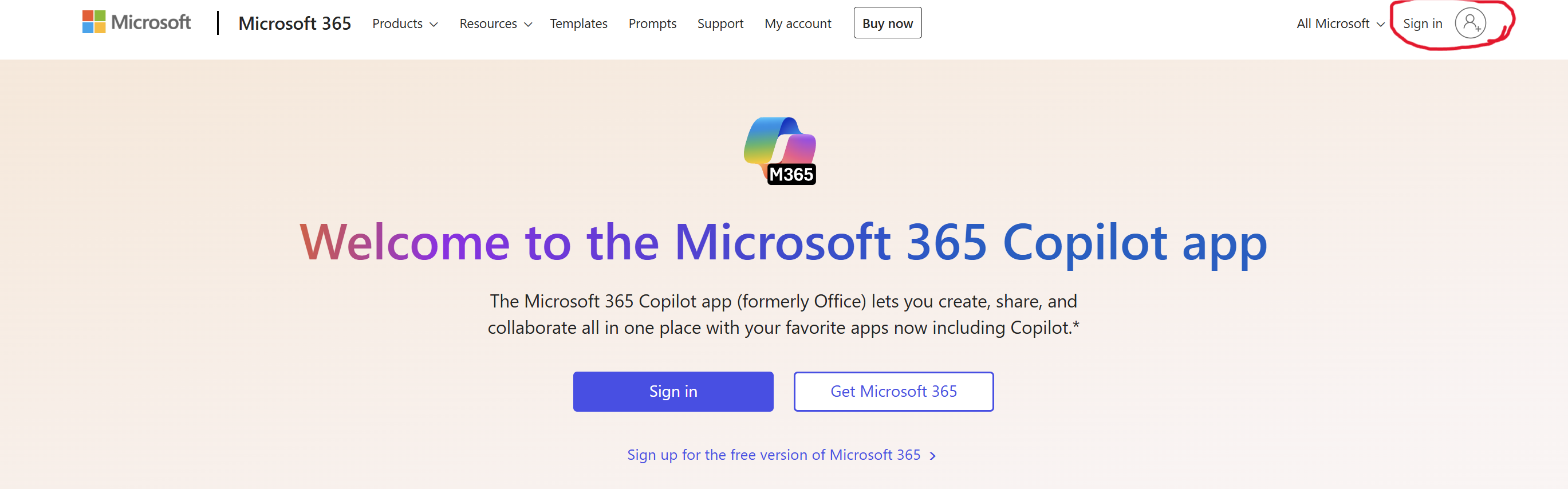
- Click the Excel icon to start using Excel in your browser.
💡 This version is free and works on any device with internet access.
Option 2: Sign In to Excel Desktop App
- Open Excel on your desktop app and click Sign In (usually in the top-right corner).
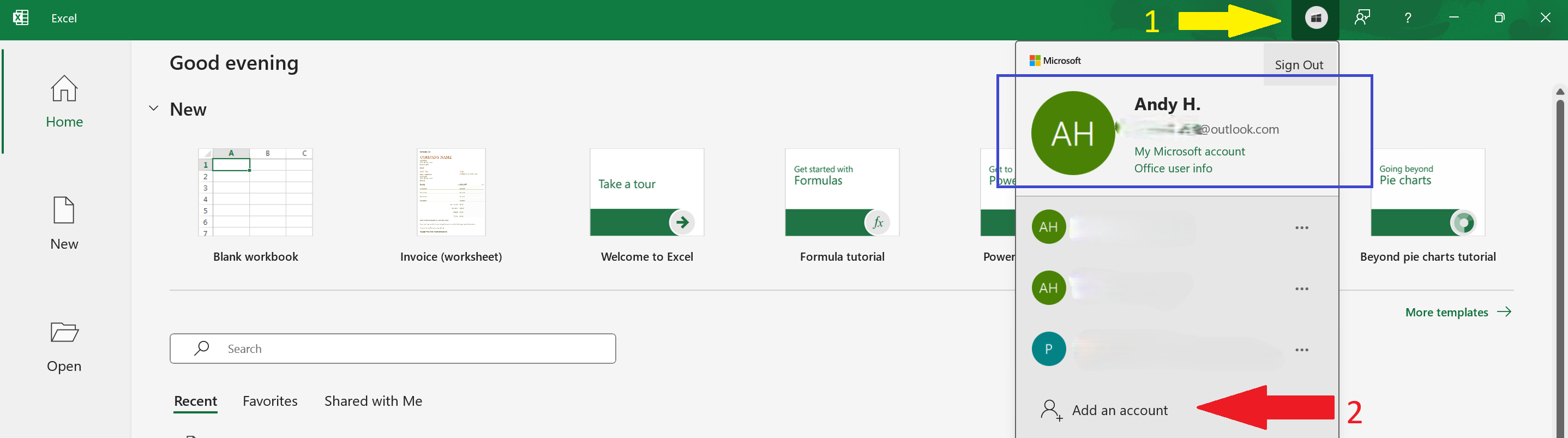
Enter your Microsoft account credentials, or click on “Add Account”.
Make sure the account in use (the blue rectangular area) is your personal Microsoft Account.
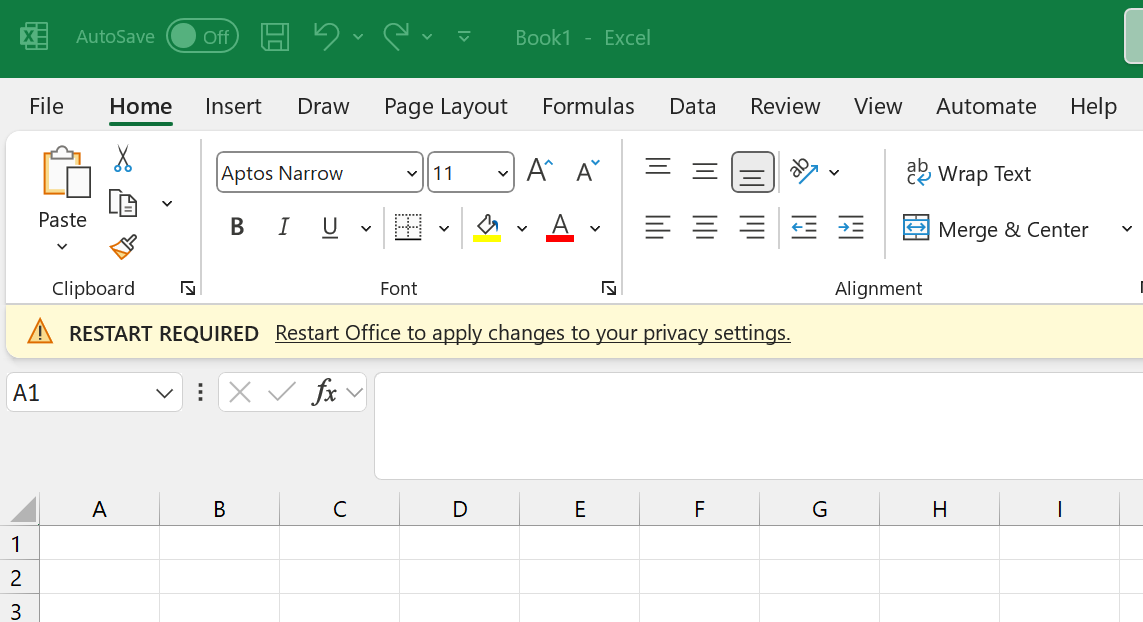
⚠️ You might be prompted to restart Excel, if so, close Excel and reopen the Excel app.
🧠 Why sign in and use personal account?
Use Anaconda Code and other add-ins
To avoid any conflicts with your work Microsoft Account.
How to Install Anaconda Toolbox
💡 Anaconda Toolbox (also come together with Anaconda Code) is an Excel Add-ins (Something that doesn’t ship with Excel itself, but can be added as optional component.). It lets you write and run Python code directly inside Microsoft Excel. This means you can use Python’s powerful data analysis and visualization tools without leaving your spreadsheet.
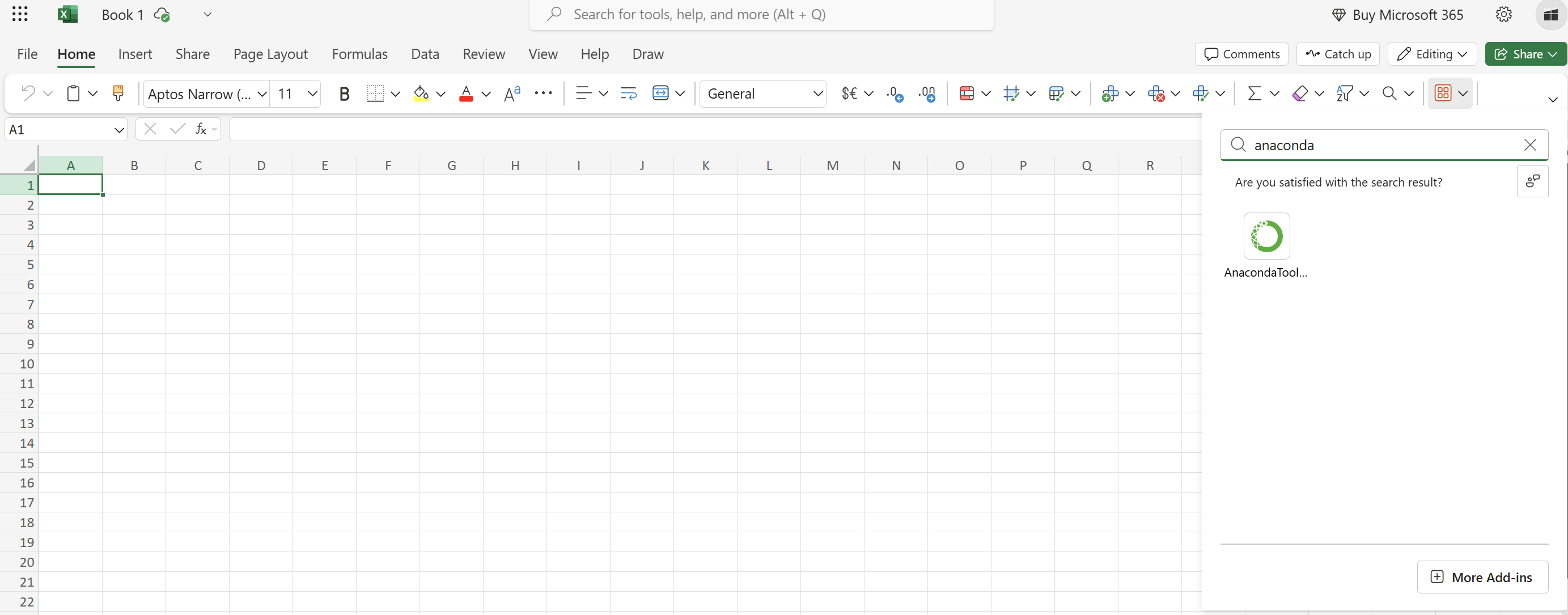
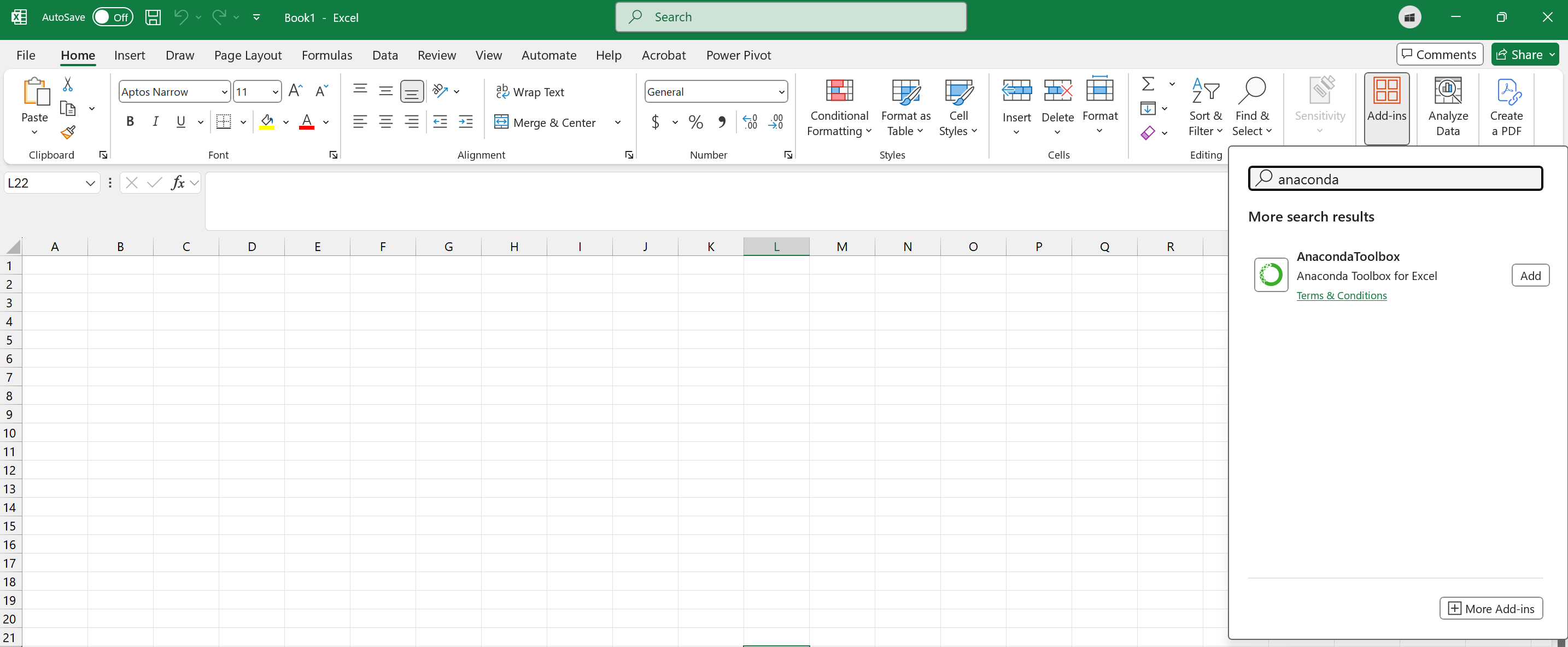
Launch Excel, head to “Home” tab 👉🏻 “Add-in”
In the pop-up menu, type “Anaconda” in the search bar 👉🏻 locate the Anaconda Toolbox add-in 👉🏻 click “Add” button.
- if you are using Excel Online
- if you are using Excel Desktop (example below shows in Windows OS)
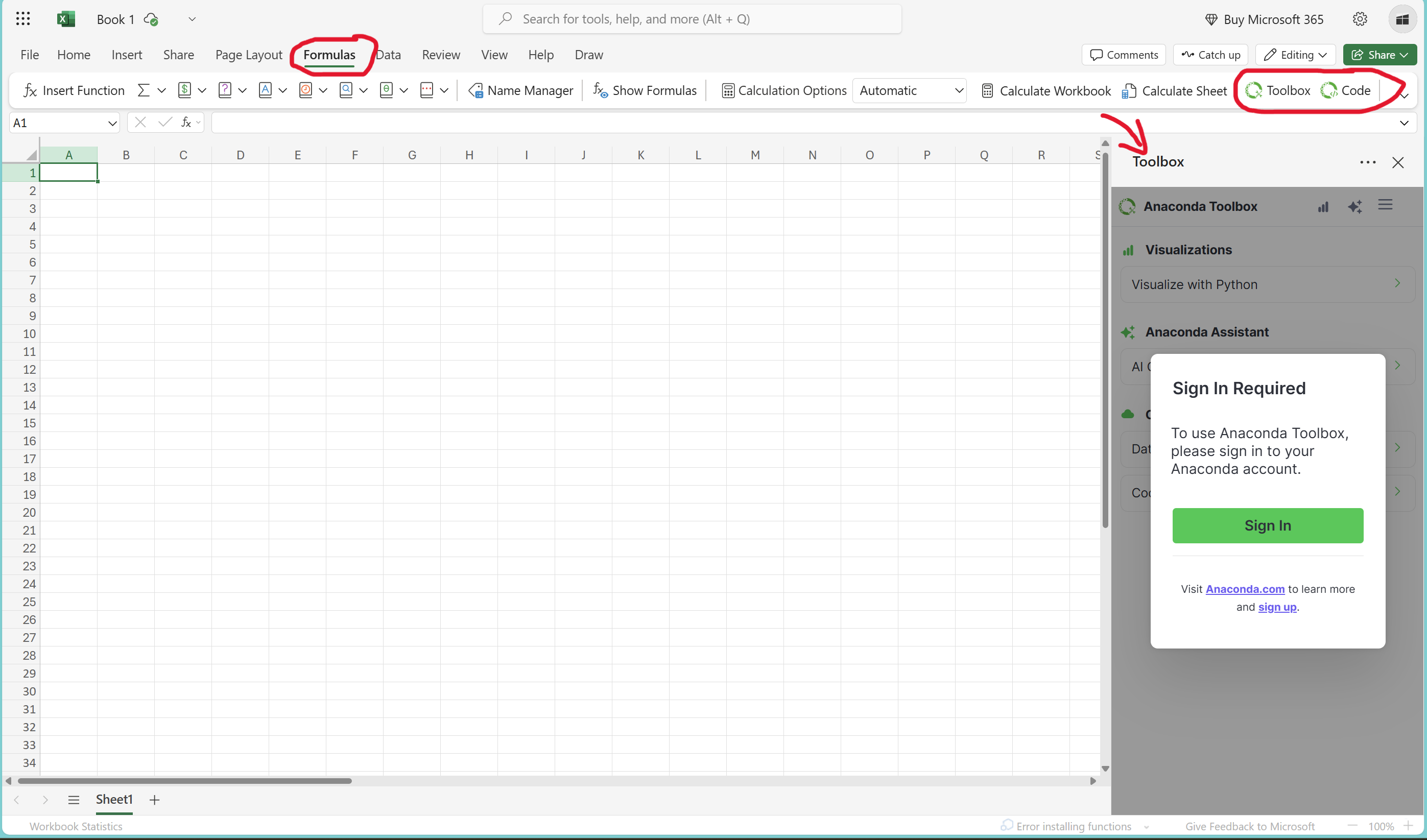
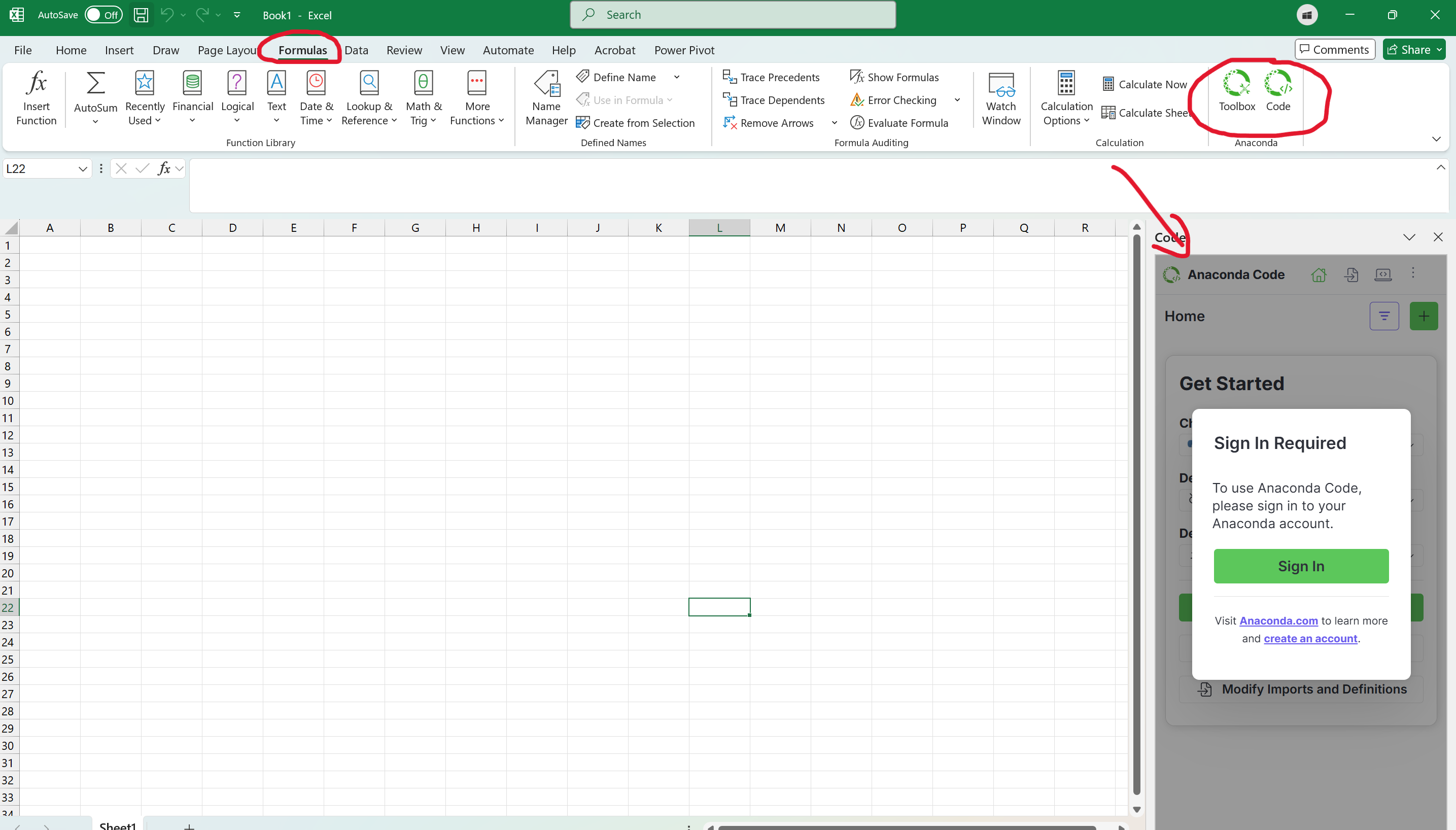
Anaconda Toolbox add-in should be installed fairly quickly and located in the “Formulas” tab. If you are seeing this something like below, then you have successfully installed the add-in! 🎉🎉
- if you are using Excel Online
- if you are using Excel Desktop (example below shows in Windows OS)
How to Register Anaconda Account
If you have an Anaconda Account, then you can skip this section.
💡 Anaconda Account allows you to use and save configurations and settings for Anaconda Toolbox. No actual data from Excel will be saved to Anaconda’s cloud unless you specifically saves it.
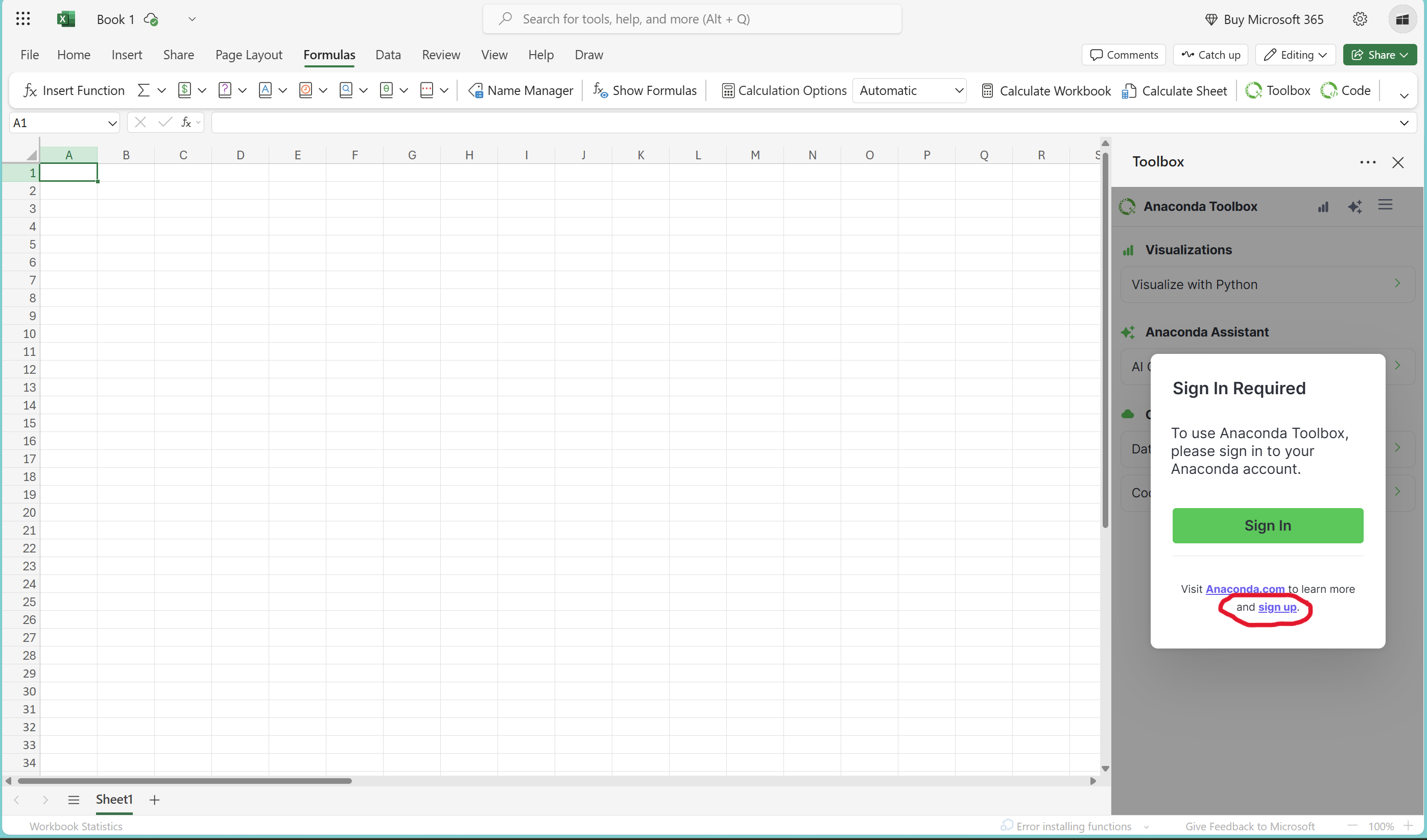
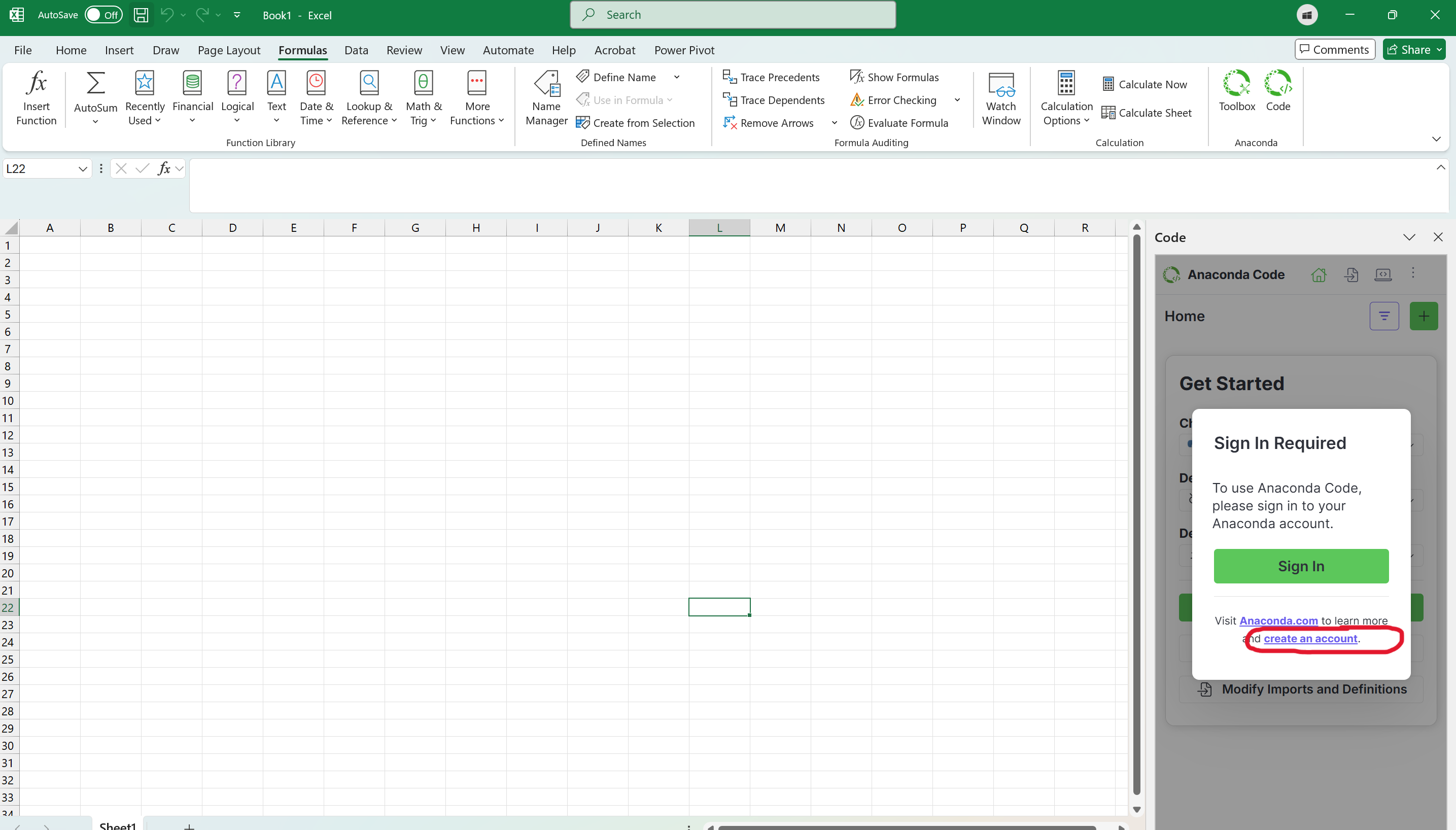
Click the “create an account” or “sign up” link in the sign-in page of Anaconda Toolbox.
- if you are using Excel Online
- if you are using Excel Desktop (example below shows in Windows OS)
You should be redirected to an webpage looks similar to this
In the webpage that you are just redirected to, click Sign Up and follow the prompts to finish creating an Anaconda Account.
Once you finish creating the account, head back to Anaconda Toolbox or Anaconda Code in Excel and sign in with your newly created Anaconda Account. You should notice that you can start using Anaconda Toolbox and Anaconda Code in Excel now.
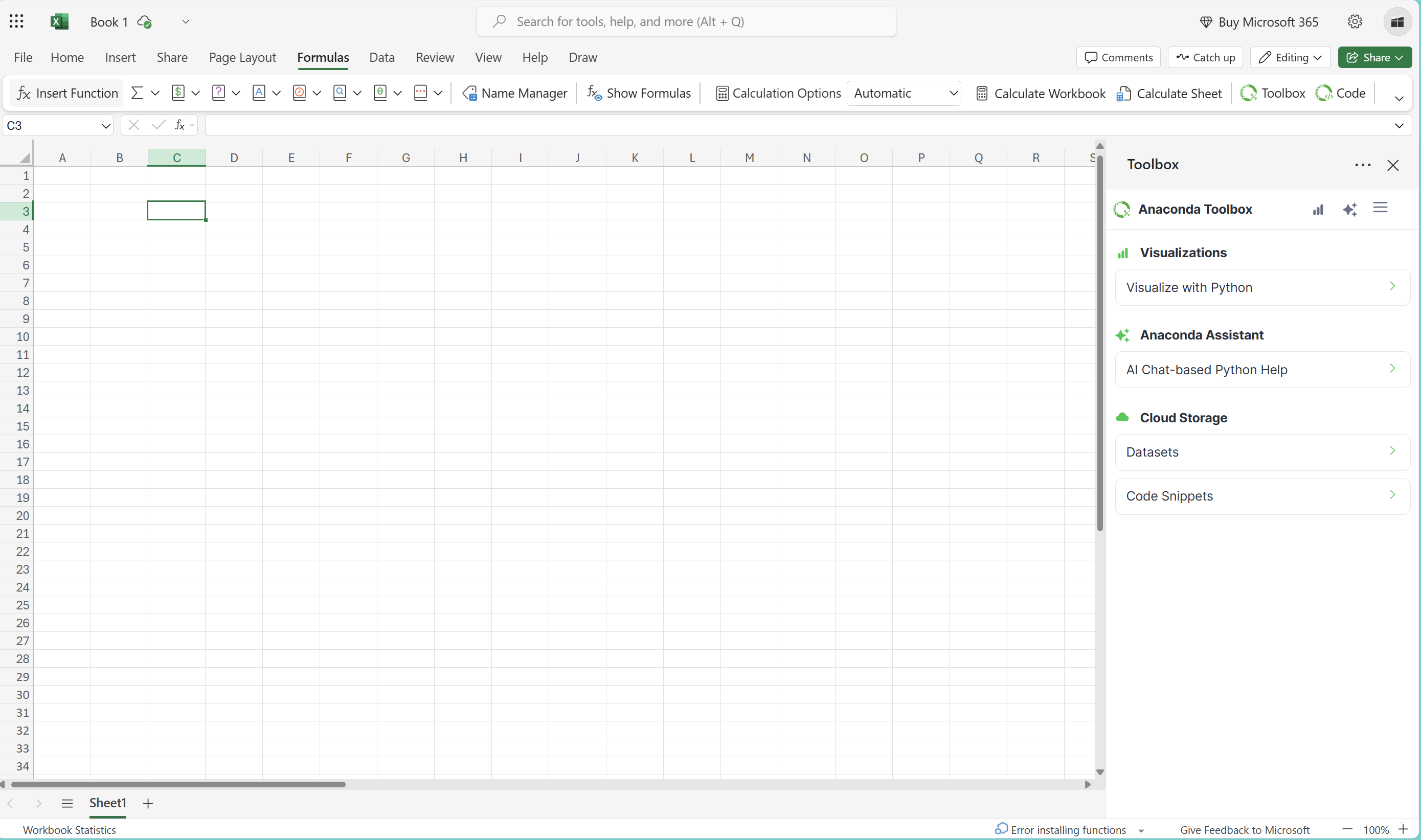
On this note, CONGRATULATIONS! You have successfully finished all the technical setups required for this session!🎉🎉
I will look forward to meeting you all soon and walk through this exciting learning journey together!!